For administrators
Organization Rules
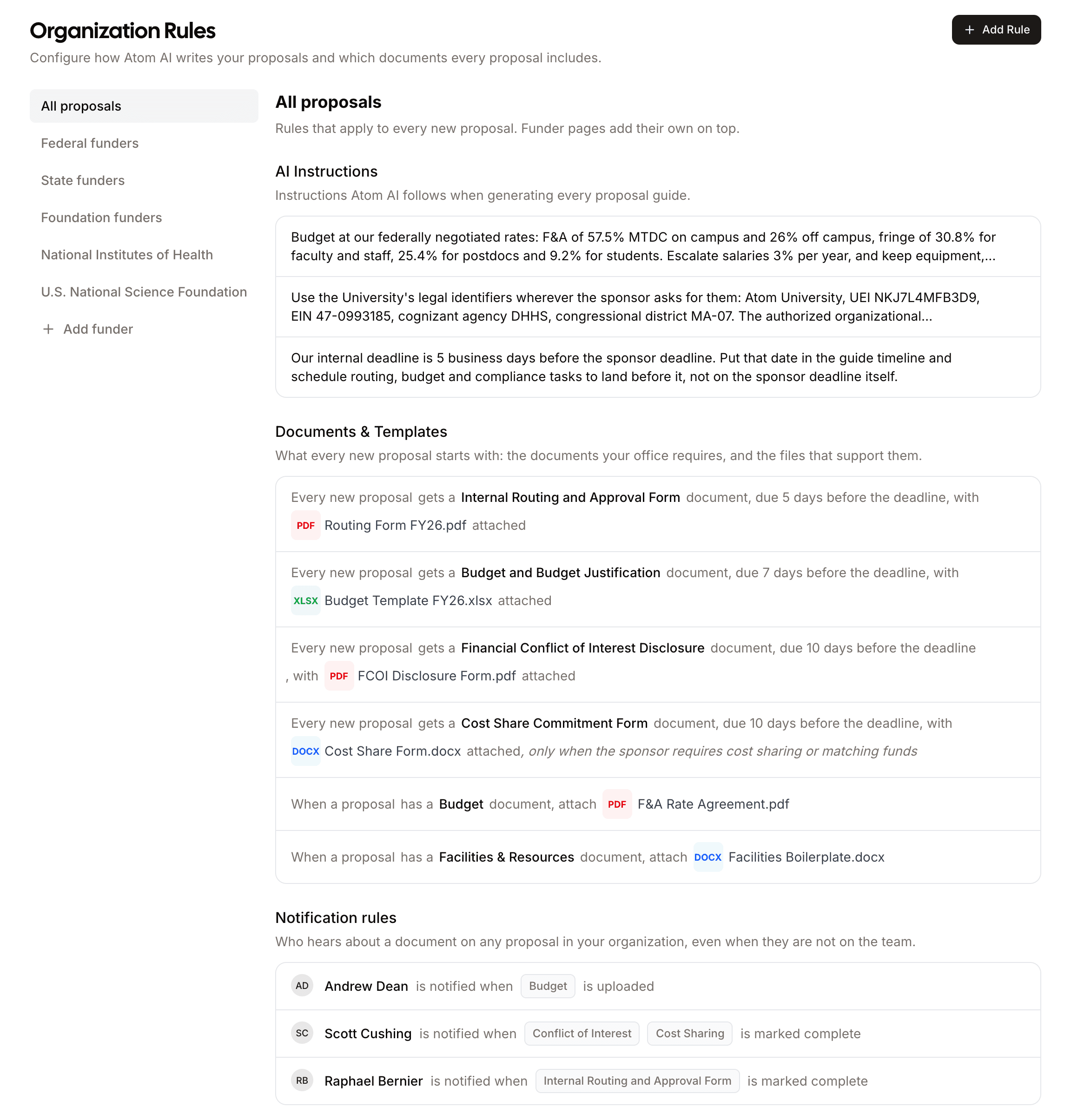
Organization rules are the standards your office sets once so every proposal starts from them. Owners and admins manage them under Proposals > Rules.
There are three kinds, and they stack: AI Instructions shape what Atom writes into a proposal guide, Documents & Templates decide which documents and files a proposal starts with, and Notification rules decide who hears about a document once work is underway.
Where a rule applies
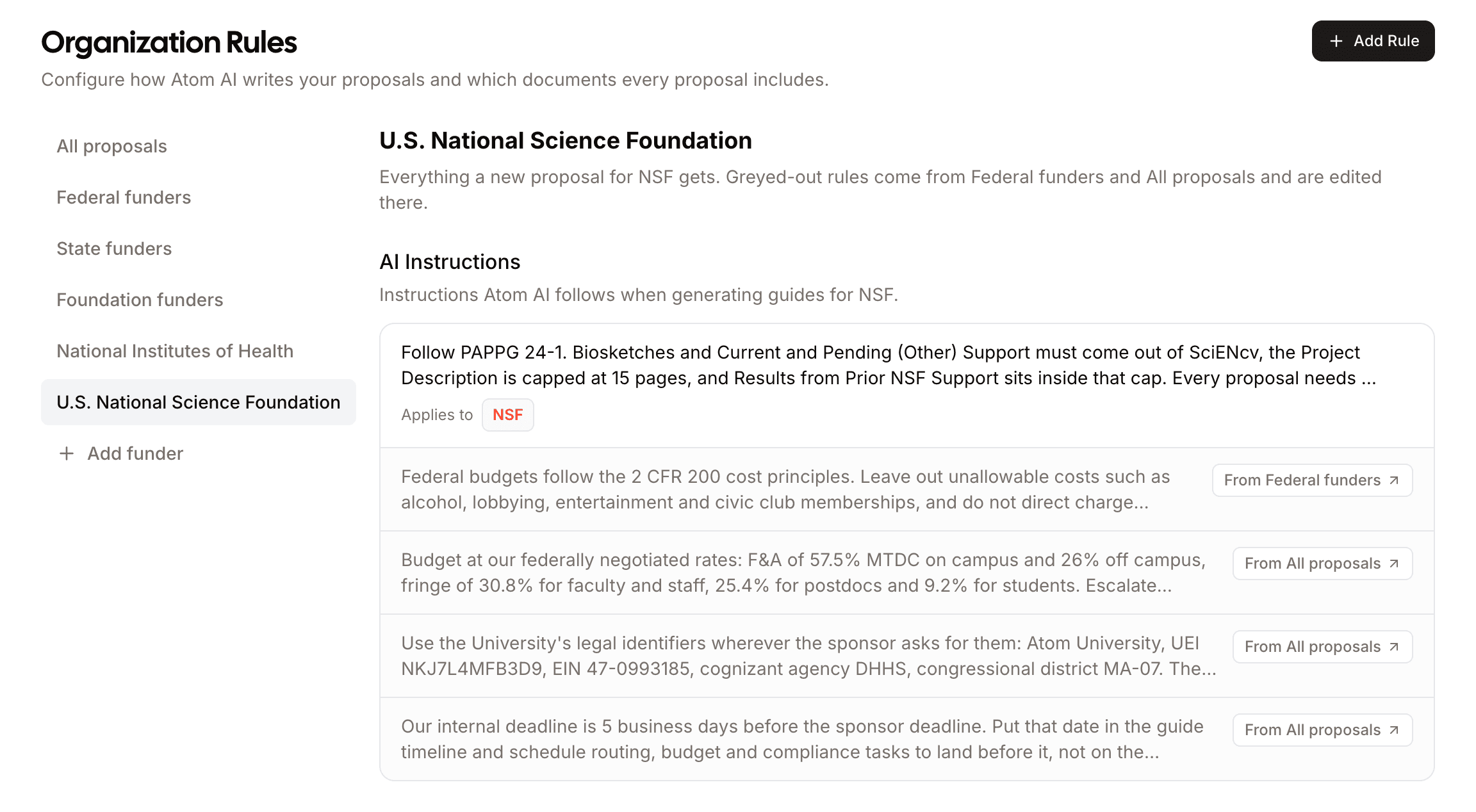
Every rule lives on a page. All proposals holds the rules that apply to everything, and Add funder opens a page for a specific funder, such as the National Science Foundation, or a whole funder type, such as federal or foundation funders. A funder joins the left rail as soon as it has its first rule.
Rules add up rather than replace each other. A proposal for an NSF grant gets the NSF rules, the federal rules, and the All proposals rules together. On a funder page, the inherited rules are listed in grey with a tag showing where they come from, so you can see everything an NSF proposal receives without leaving the page. Click a grey row to jump to the page that owns it, which is the only place it can be edited.
AI Instructions
Instructions are standing directions Atom follows whenever it generates a proposal guide. They are the place for the details your office would otherwise correct by hand on every proposal: your negotiated F&A and fringe rates, the legal name and identifiers a sponsor asks for, your internal deadline, or an agency's format rules, such as requiring biosketches to come out of SciENcv.
Write each one as a plain sentence or two, the way you would brief a new grants administrator. Scope it if it only applies to some funders, and leave it on All proposals if it is true everywhere.
Documents & Templates
This section covers both the documents a proposal starts with and the files that support them.
- Required documents are added to every new proposal in scope. Give the document a name, and optionally a due date expressed as a number of days before the sponsor deadline, so it shows up in the guide with a date already on it. Attach a template, such as a routing form or a budget workbook, and it arrives on the document ready to fill in.
- Supporting files attach to a document type rather than creating a document. When a proposal's guide produces a document of that type, your file attaches to it, so your facilities boilerplate lands on the facilities document Atom generated for that grant.
- Conditional rules only apply when something is true of the grant, for example attaching a cost share commitment form only when the sponsor requires cost sharing or matching funds. Atom checks the condition against the grant and skips the rule when it does not hold.
You can also define your own document types alongside the built-in ones, and they appear in the guide like any other requirement. A type you create on one page is offered on all the others, so you only type it once.
If a proposal is relinked to a different grant or its guide regenerates, Atom re-evaluates your conditional rules and updates only the documents that changed, without creating duplicates or losing progress on other tasks.
Notification rules
Required documents and instructions set a proposal up. Notification rules keep your office in the loop once researchers start working, without asking anyone to watch the board.
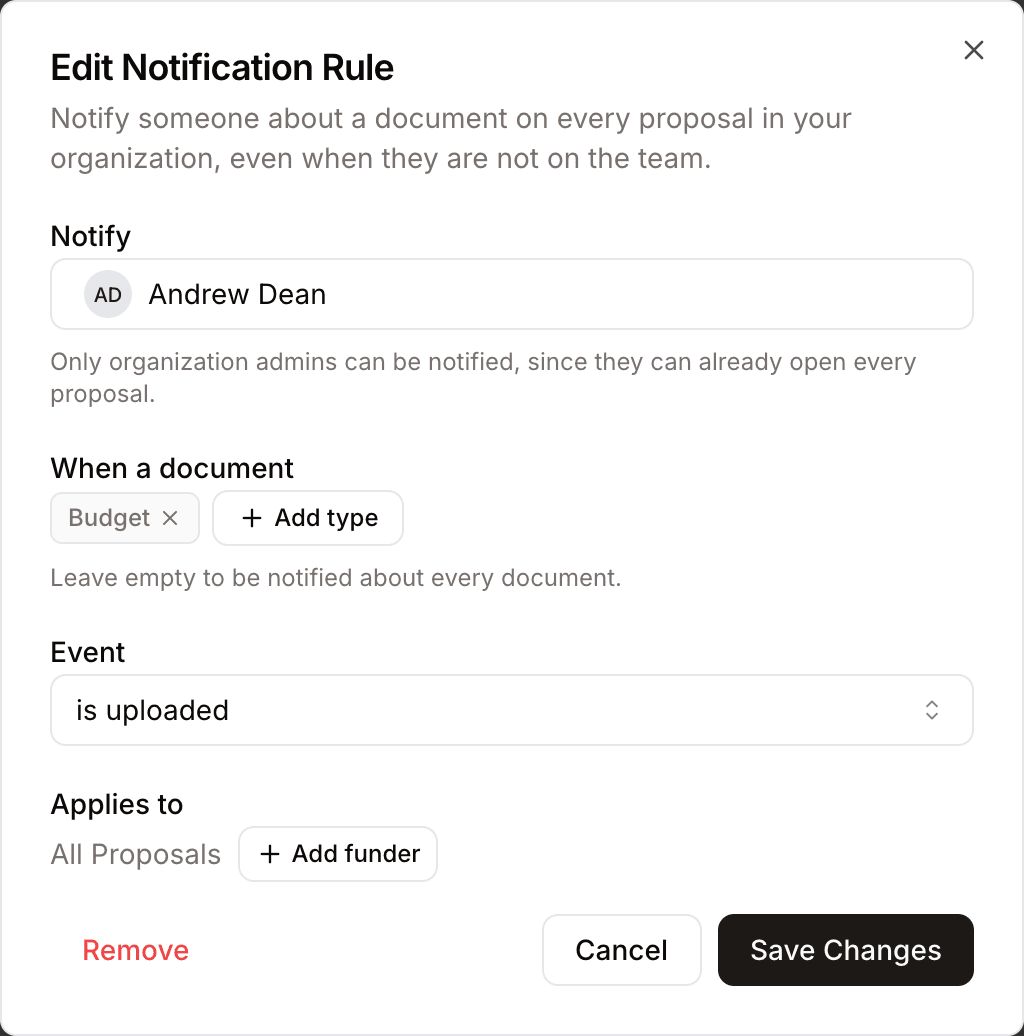
A rule names a person, an event, and, optionally, what it applies to:
- Who. Only admins and owners can be notified. They can already open every proposal in your group, so a rule changes who hears about a document, not who can see it.
- When. Either a file is uploaded to a matching document, or a matching document is marked complete. Subtasks do not fire the rule, so a budget with eight line items notifies once, when the budget itself is done.
- What. Pick one or more document types, such as Budget or Human Subjects / IRB, or leave it open for any document. Scope the rule to a funder or funder type the same way as any other rule.
Recipients get an in-app notification and an email, even when they are not on the proposal team and regardless of their own activity preferences, because the rule reflects your office's decision rather than theirs. Nobody is notified of their own upload, and someone covered by several matching rules still gets a single notification.
The rules you set here become the starting point for every matching proposal, so your researchers never miss an institutional requirement.