Proposals
Guide
The Guide tab is your reference for what the funder wants. Atom doesn't build it automatically. Select Generate Guide on the Overview or Guide tab, and Atom reads the solicitation in the background while you keep working. It takes a few minutes.
The tab has three views: Summary, Checklist, and Sources.
Summary

The summary covers the solicitation section by section, including eligibility, formatting, key dates, budget, review criteria, tips and common pitfalls, and submission, with links back to the source. For federal grants, Prerequisites lists the registrations your team needs, such as eRA Commons, SAM.gov, and Grants.gov, so you can start the slow ones early. Before You Apply lists what the solicitation asks you to do outside the package, such as contacting a program officer first or sending a letter of intent or concept paper, and by when.
At a glance pulls out the details people look up most: format rules, page limits, and things that are easy to miss.
If your role lets you manage the proposal, you can click into a section and edit it. Use Email to share the guide with a teammate or external partner, or Download to save it as a PDF.
Administrators can shape what Atom writes with instructions in the Library. Instructions apply when the guide is generated, so they don't change a guide that already exists.
Checklist
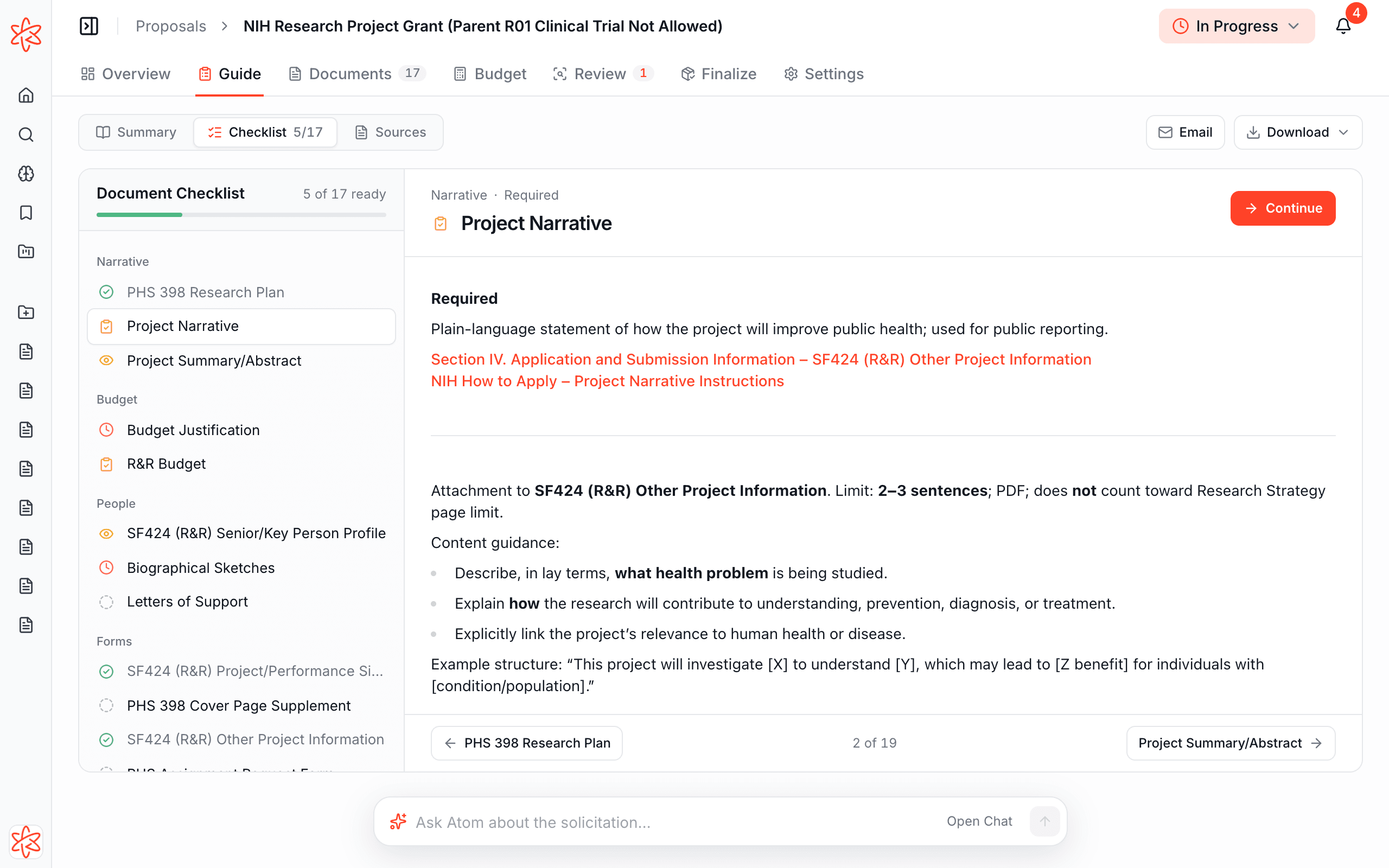
The checklist lists every document the proposal needs, grouped by type, with what the funder asks of each one. Your office's required documents appear here too.
- Select a document to read its requirements, then use its button to start or continue it, such as Write or Start From Template.
- If a document only applies to some projects, Atom asks Does it apply to this proposal?
- Optional documents are labeled Optional, and conditional ones If it applies. They don't count toward the ready total until someone starts them. Documents you add by hand appear in the checklist, its downloads, and its emails.
- Use Email to send the checklist, or Download for a Printable Checklist or Tracking Spreadsheet.
Sources
Sources shows the documents the guide was read from, as the funder published them. When the main source is a PDF, it opens right in the page. Anything else opens on the funder's site.
Next, start your documents.