For researchers
Projects
A project is one funding effort, and it carries everything the grant search needs: the research interests that drive matching, the eligibility Atom checks against every grant, the filters that narrow what reaches you, the team working on it, and a shared list of saved grants.
Your dashboard, your grant emails, Deep Research, and the eligibility check on any grant all follow whichever project you are working in.
Who projects are for
- Researchers with more than one line of work. If you study both CRISPR delivery and rural health outcomes, those can be two projects, each with interests specific enough to match precisely, and you switch between them in a click.
- Teams. A project is a shared workspace for the funding search itself, before there is a proposal to write. Everyone on the project sees the same research interests, the same eligibility verdicts, and the same saved grants.
- Research development staff. Administrators can open any project belonging to a researcher they support, refine its research interests, add eligibility context, and view the researcher's feed exactly as that project sees it.
Create one project per line of work, not one per grant. A project is a research direction you will pursue funding for over months or years. Individual applications live in Proposals.
Creating a project
Open Projects
Select Projects in the sidebar, then New project.
Fill in one page
Name, team, eligibility, research interests, grant filters, and your grant email preference all live on a single page. Nothing is saved until you create the project, so you can work through the sections in any order.
Create it
Select Create project. Everything is set up at once, including a shared saved-grants list named after the project, and any invitations you staged are sent.
When naming a project, describe the research rather than a specific opportunity. A name like "CRISPR delivery for rare disease" captures a direction you will pursue funding for over years, which is the level a project is meant to live at.
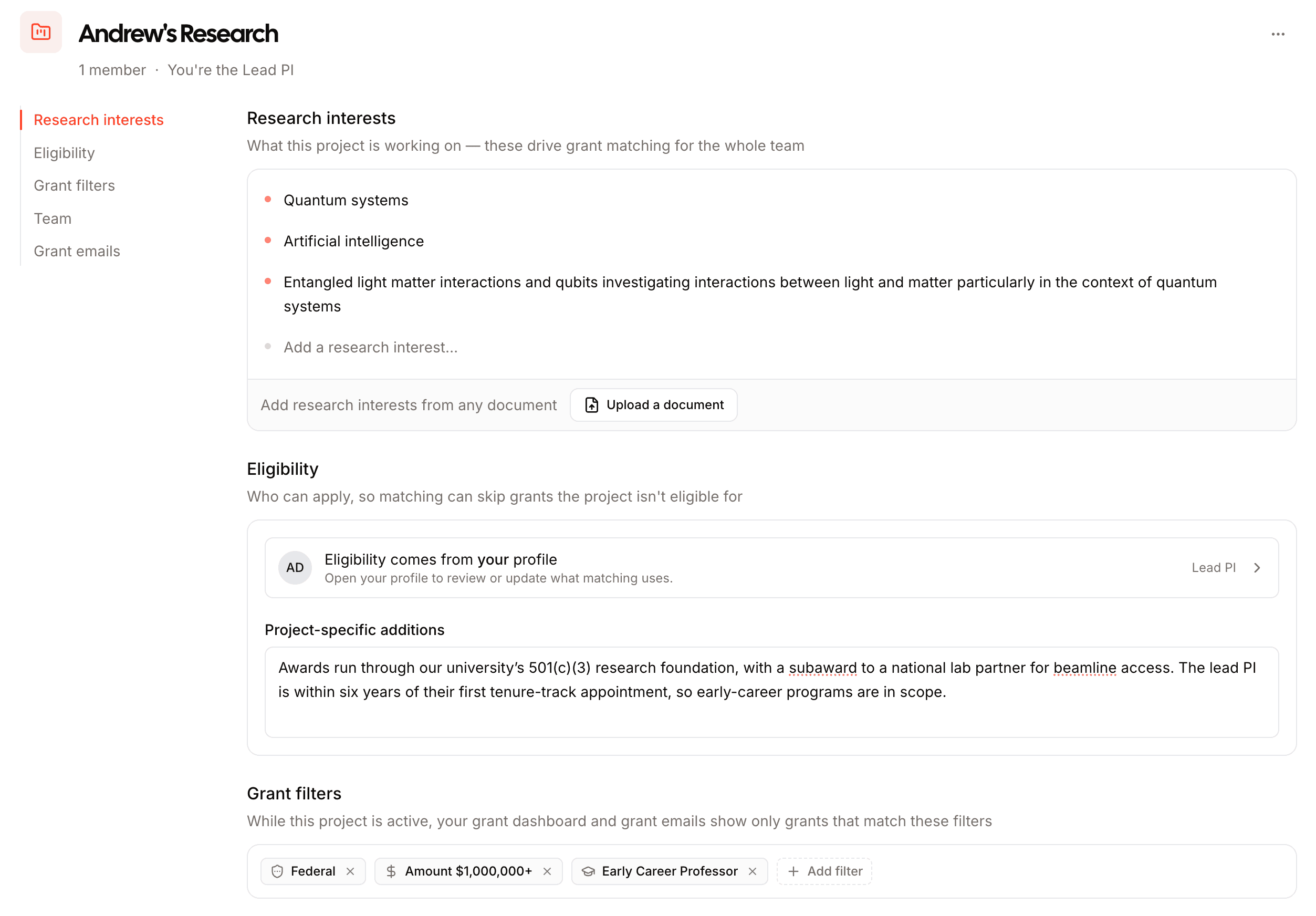
Research interests
Research interests drive the matching, so they deserve more care than any other field on the page. Add them by hand, select Generate with Atom AI to draft a starting set from the project name and the lead PI's background, or upload a CV, research statement, or biosketch and let Atom pull interests out of it.
Editing happens inline, one line per interest, and each line saves on its own, so matching improves with every refinement rather than waiting on a final save. The lead PI and project admins can edit a project's interests, and so can an administrator at your institution.
See research interests for how to write interests that match well.
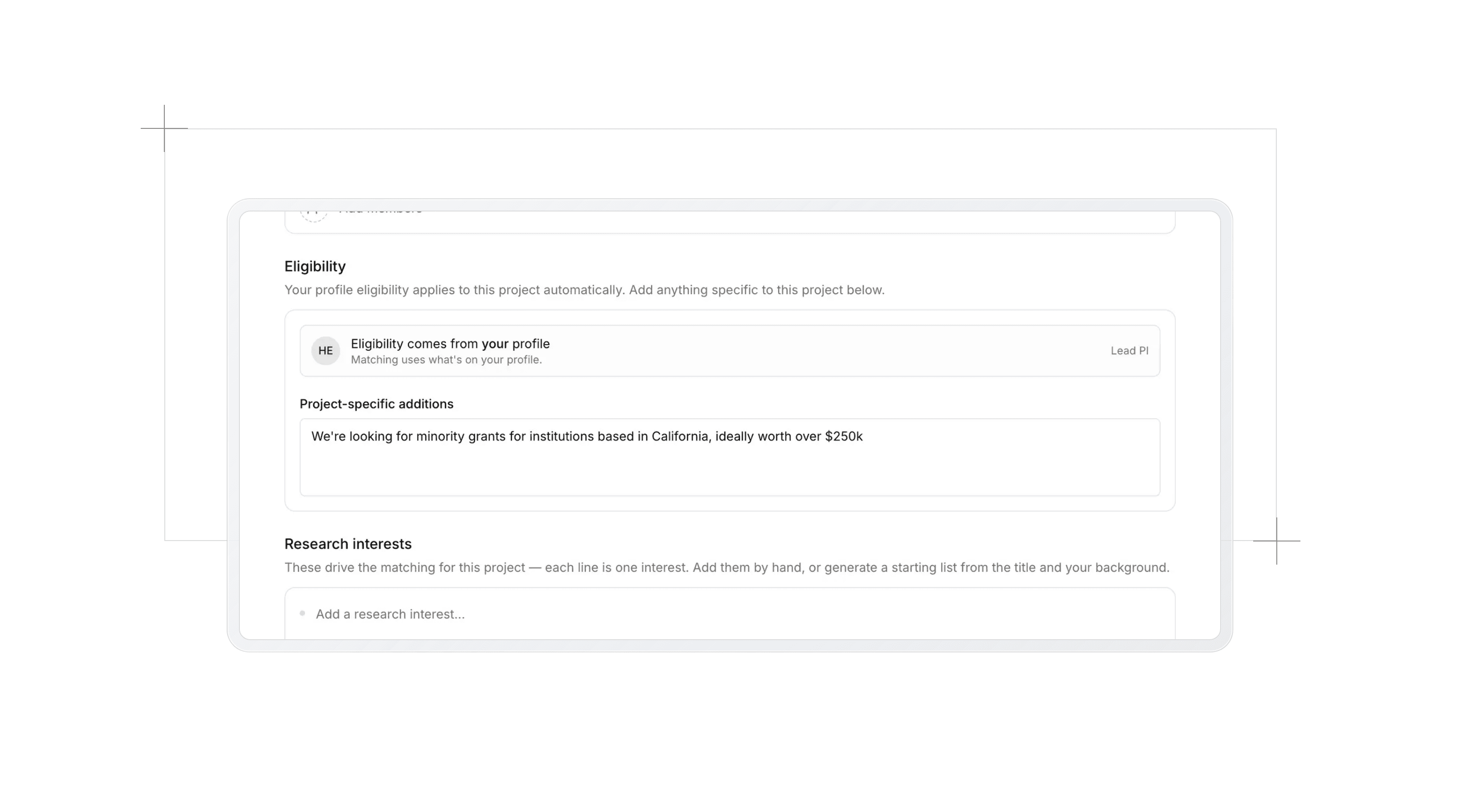
Eligibility
Eligibility comes in two halves:
- The lead PI's profile. This half is read live from their research profile, so it is always current. The project page shows you exactly whose profile it is.
- Project-specific additions. A free-text box for facts about the project rather than the person: the award runs through a 501(c)(3), the work targets a specific geography, there is a partner institution. These apply to everyone on the team.
Whenever either half changes, Atom refreshes its eligibility verdicts for the project's grants, so they always reflect the current picture.
Grant filters
Save filters to a project, and while that project is active your dashboard, your grant emails, and Deep Research show only grants that match. Set them at creation or any time afterwards on the project page.
See grant filters for the full list of filters and how rolling deadline windows work.
Your team
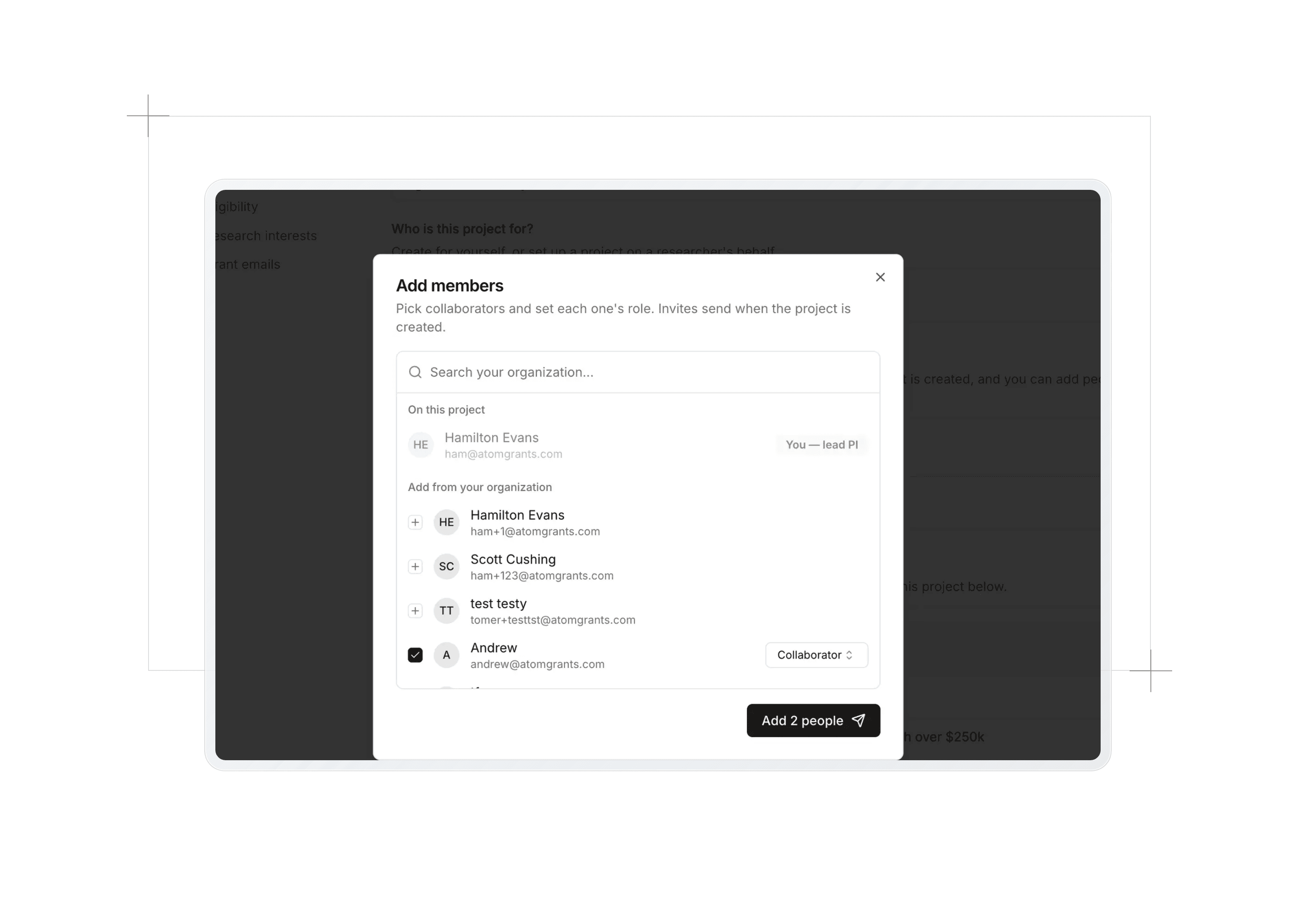
Add collaborators from your institution and give each one a role. Invitations are prepared as you pick people and sent together when you are ready, so you can put the full roster in place before anyone is notified. Invitees receive an email and arrive in Atom already signed in, with a card on their projects page waiting for them to accept.
| Role | What it means |
|---|---|
| Lead PI | Anchors the project. Their profile drives its eligibility and matching. Exactly one per project. |
| PI | Manages the project, its filters and eligibility, and its team. |
| Admin | Manages the project and its team, and edits its research interests. |
| Collaborator | Sees the project's feed, interests, eligibility, and saved grants. |
The lead PI role can be transferred at any time if the applicant of record changes. Managers can change roles, remove members, and revoke invitations that have not been accepted, and anyone can leave a project from their own row.
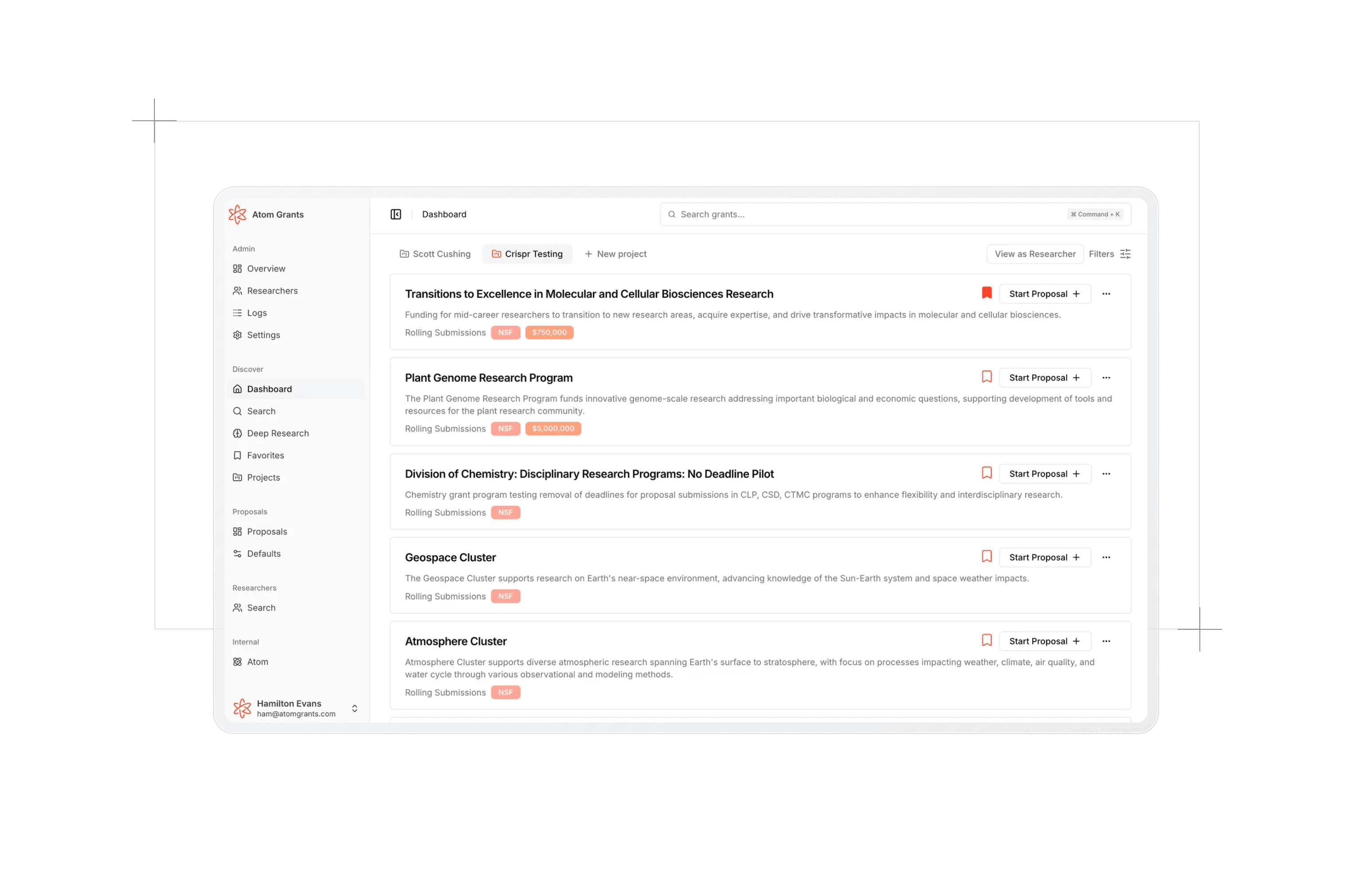
Switching projects
Your projects appear along the top of your dashboard. Select one and the feed beneath switches to its matches. Deep Research and the eligibility tab on any grant page follow the same selection, and opening a project's page makes it the active one.
Each project's saved-grants list belongs to the team: joining a project grants access, leaving removes it, and there is nothing to manage by hand. See saving and sharing grants for how lists work.
Grant emails
Email preferences are individual even though the project is shared. A collaborator on three projects who only wants updates about one can mute the other two while staying on the team. Set Include this project in your grant email to on or off in the project's Your grant emails section.
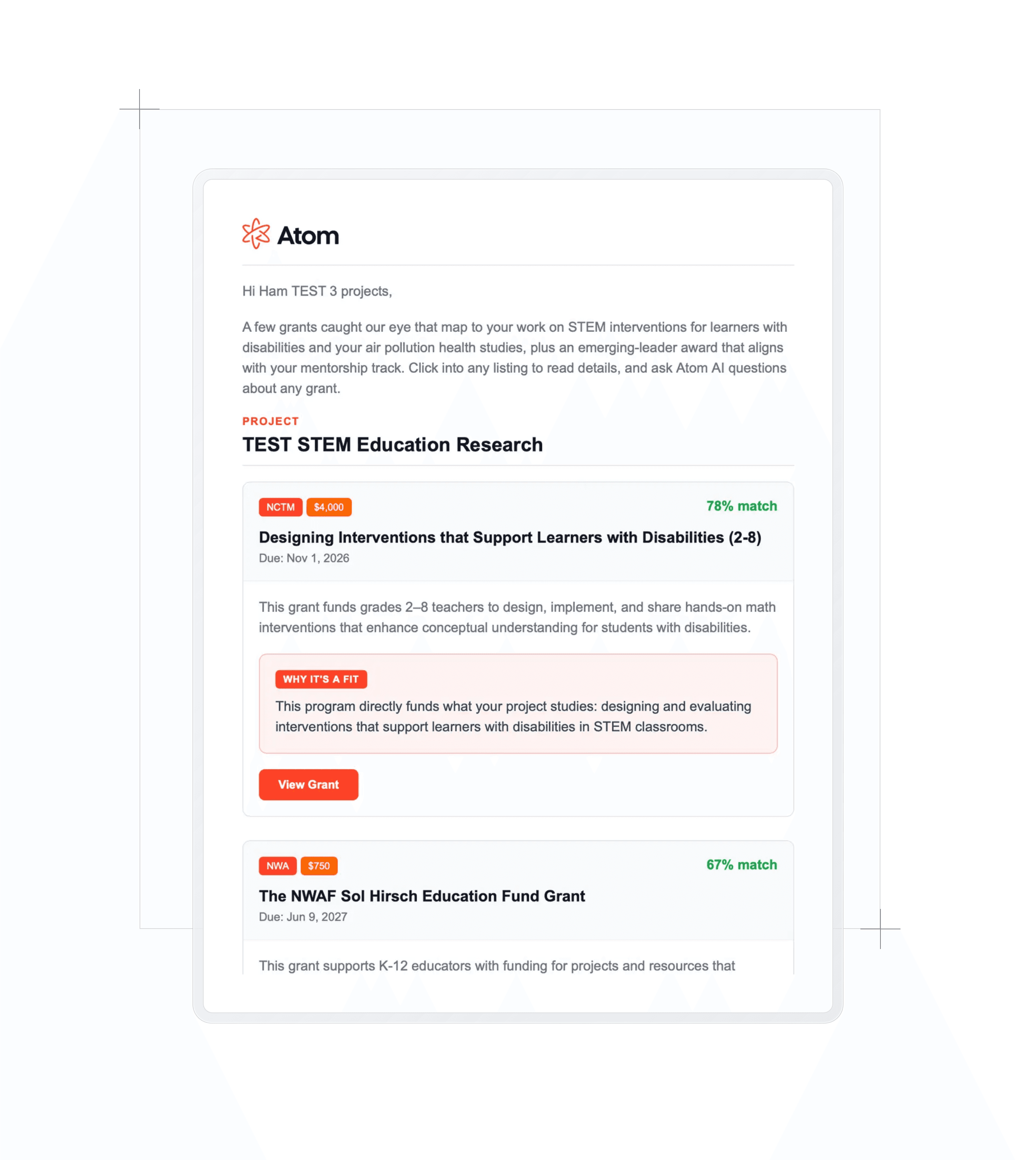
You receive one email per send, with a section for each project and only the strongest matches in each. A grant that fits several of your projects appears once, in the section where it fits best, and a project without strong matches that week is left out. Each project shows up to four grants (five in your first email). Grants listed in the last two weeks are tagged Newly listed. A strong match you were sent before and have not opened since can come back once, tagged Reminder, no sooner than 28 days later and only while its deadline is still at least 21 days away. Atom checks fit, such as funding type, role, career stage, and applicant restrictions, before topic relevance, so the list stays short and relevant. Grants you have hidden with Hide Grant are left out, and so are grants Atom has already ruled out for the project. If nothing matches, you get no email that week. Your overall schedule, whether weekly, every two weeks, or monthly, lives in your notification settings.
For administrators
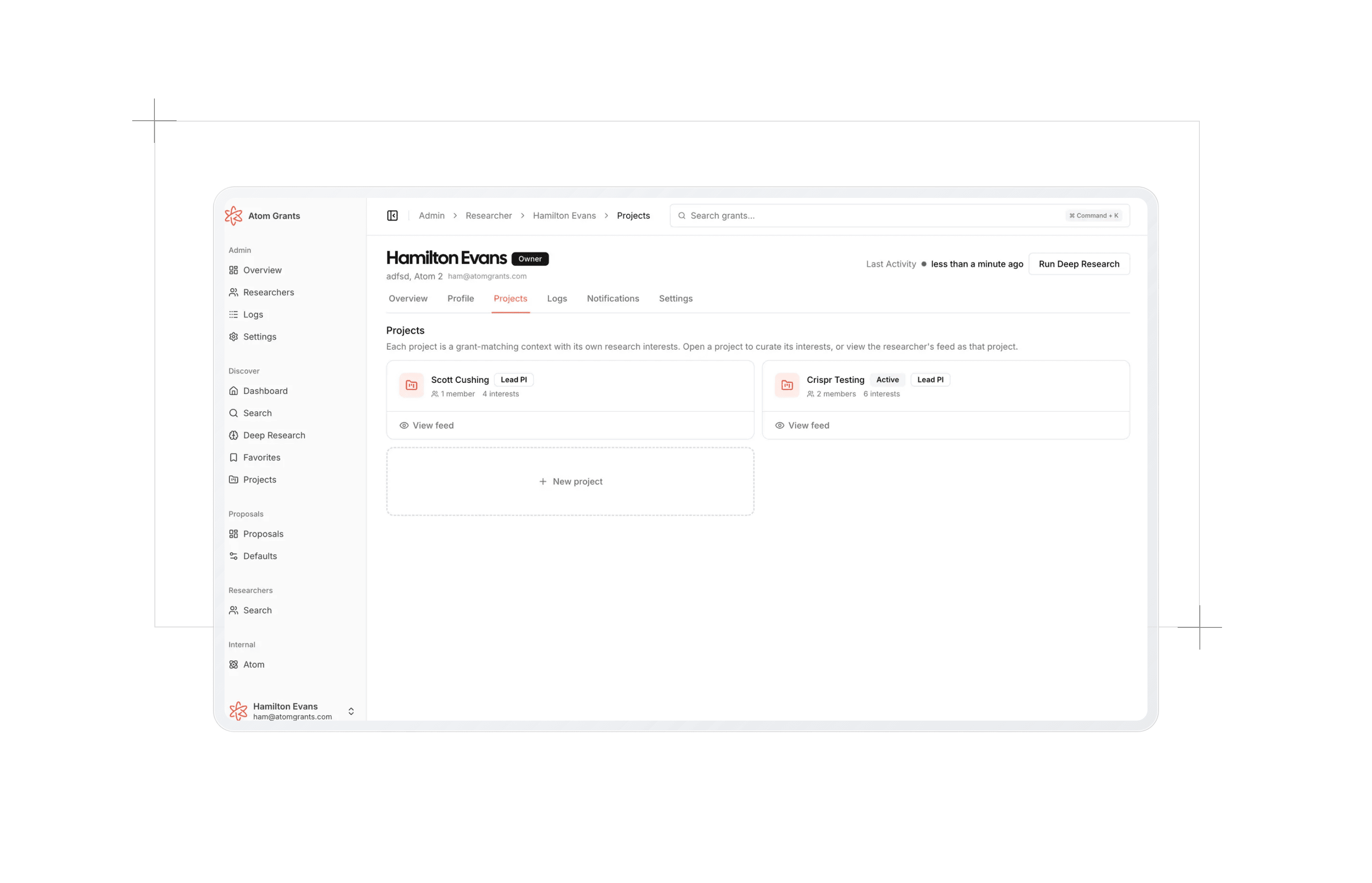
Every researcher's admin page has a Projects tab listing their projects with roles, member counts, and interest counts. Open a project to curate its research interests and eligibility directly, or use View feed to see their dashboard as that project and judge the match quality for yourself.
You can also create a project on a researcher's behalf: they become its lead PI and you join the team as an admin. This makes project setup a natural part of onboarding, and ten minutes spent writing good research interests for a new faculty member pays off in every feed and email they receive afterwards.
Archiving a project
When a line of work wraps up, open the project and select Archive project from the menu beside its name. It leaves your projects list and stops driving your feed and emails. If it was your active project, Atom switches you to another one.
Habits that help
- Be specific with research interests. "Ultrafast X-ray spectroscopy for quantum materials" matches far better than "materials science." If a project's interests start drifting apart, that is usually a sign it is ready to become two projects.
- Mute rather than leave. If a teammate's project is not relevant to your inbox, muting it keeps your access to the team and its saved grants while quieting the emails.
- Administrators: set up projects during onboarding. Creating a project for a new researcher, with well-chosen interests, means their very first feed is a good one.