Proposals
Budget
The Budget tab keeps your two budget documents together: the Spreadsheet and the Justification. Switch between them at the top left of the page. A check mark means a document checks out, and a warning means it has something to fix. You can work on them in any order, though the justification is easiest to write once the numbers are in.
If the proposal doesn't have budget documents yet, select Start Budget and Atom sets up the ones the solicitation asks for.
Spreadsheet
Start the spreadsheet
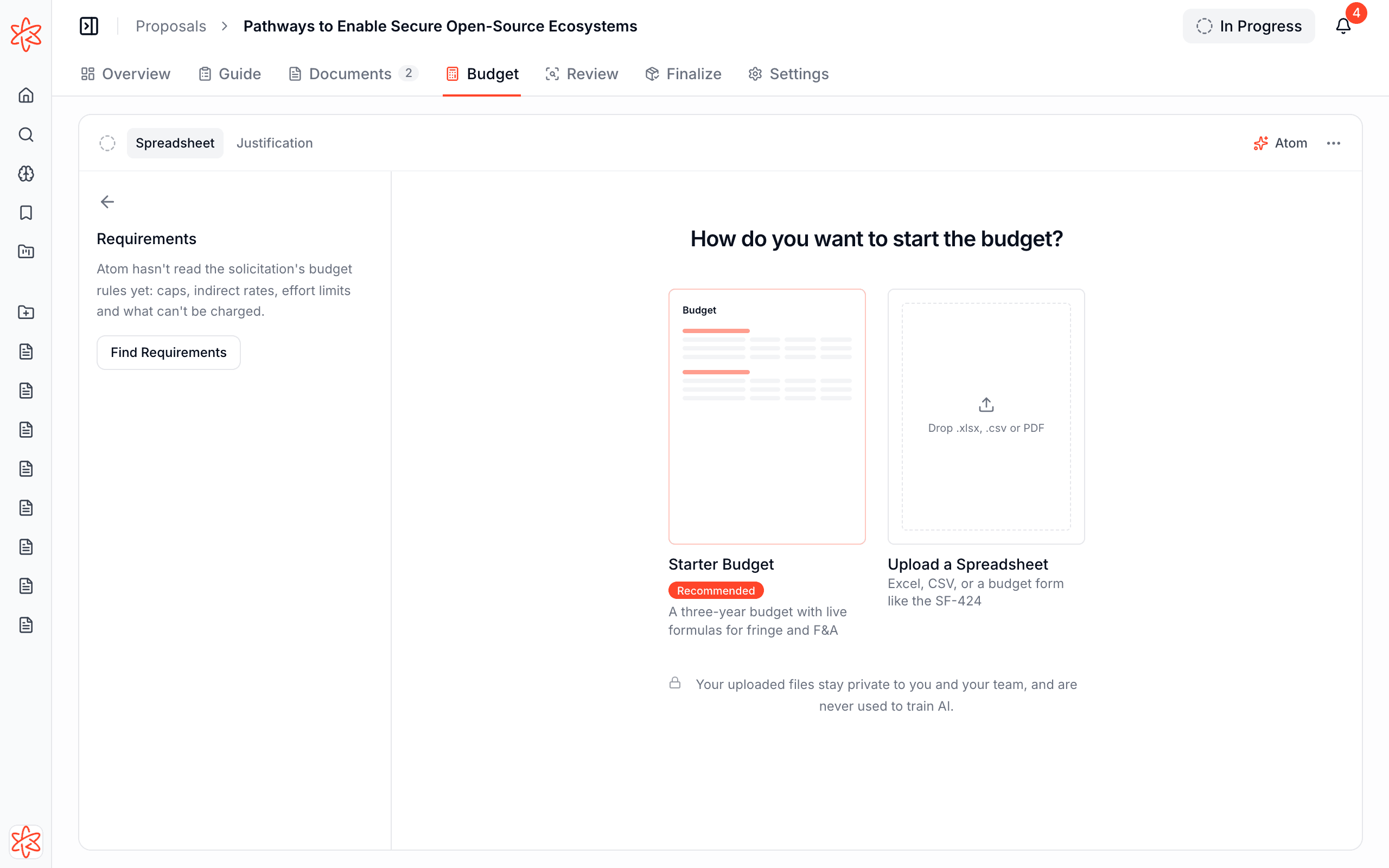
- Starter Budget builds a budget sized to the proposal, with one column per year, the funder's usual sections, and live formulas for fringe and F&A. It uses your institution's rates when your budget policy includes them, and holds F&A to the solicitation's cap. Amounts start at $0, so type your salaries, effort, and costs into the highlighted cells and the totals fill in.
- Upload a Spreadsheet uses a file you already have: Excel, CSV, or a budget form PDF such as the SF-424. Atom checks the numbers as soon as it lands.
If your office has provided a spreadsheet template, Download your university's template appears below the options, so you can fill it in and upload it.
Edit and check the numbers
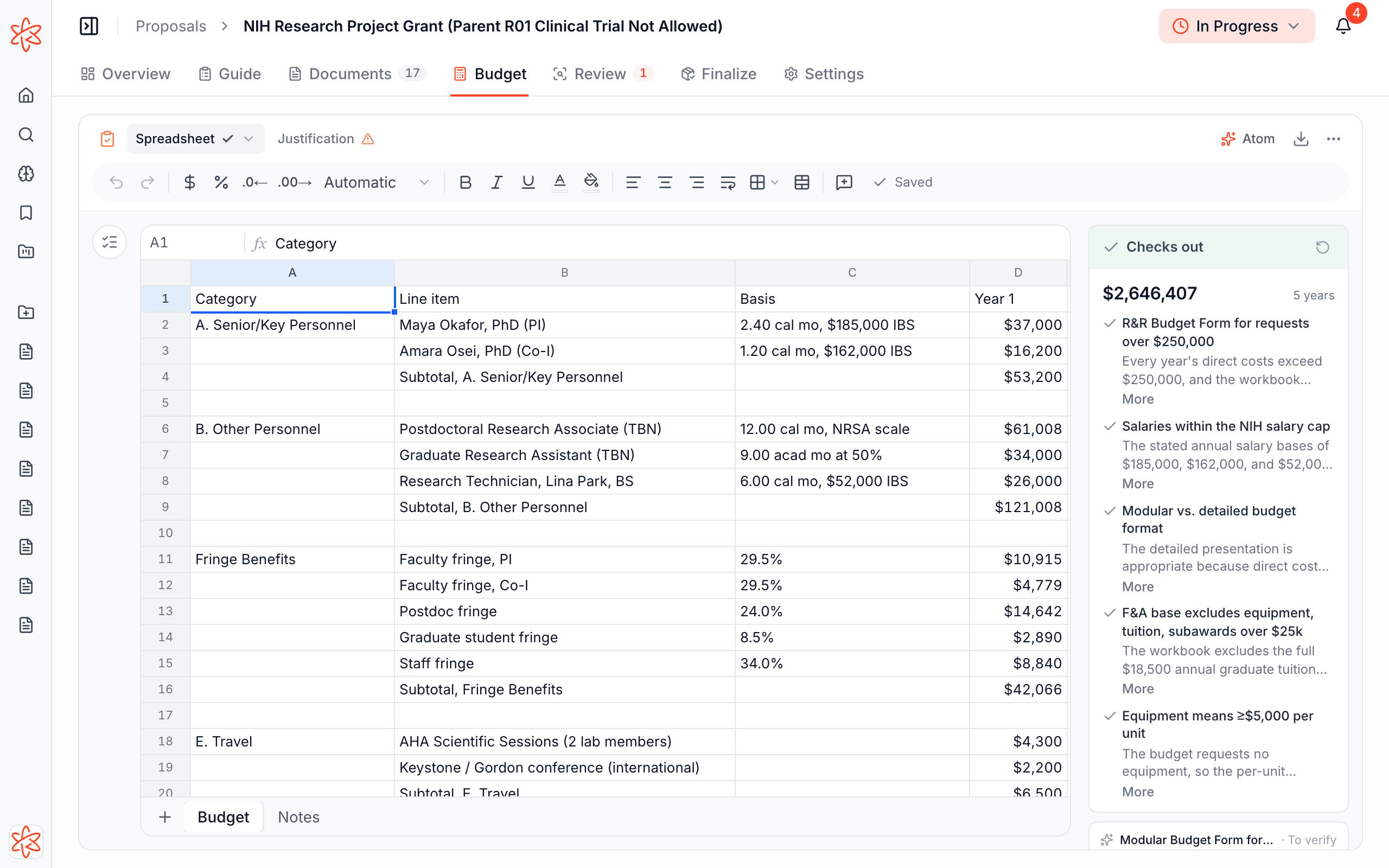
The editor covers the core of a spreadsheet: formulas, formatting, multiple sheets, and comments on cells. Your changes save as you go.
Select Check Numbers and Atom checks the arithmetic, rates, and the funder's caps. If everything's fine, you'll see Checks out with what it looked at. Otherwise, each issue is listed with Fix with Atom, which suggests edits to the sheet, or Resolve if your team has handled it. Some items are marked To verify because only your team can confirm them, and you can select Mark Verified once you have.
Open Requirements on the left to see the funder's numbers beside the sheet, such as the award cap, salary cap, and indirect costs. If Atom hasn't read them yet, select Find Requirements.
Justification
Start the justification
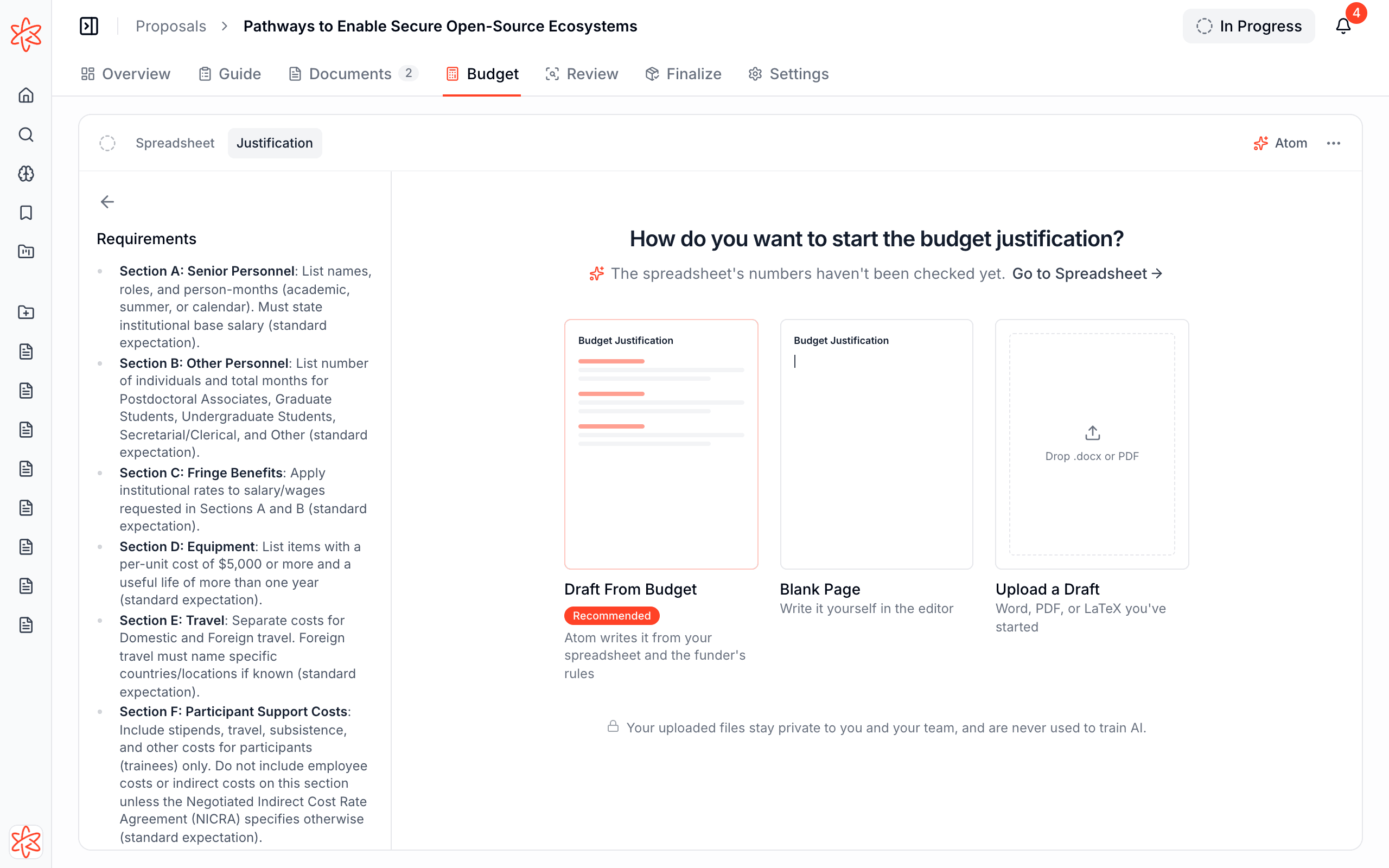
The justification has the same kind of start page as other documents:
- Draft From Budget has Atom write it from your spreadsheet and the funder's rules. It appears once there's a spreadsheet, and drafting takes a few minutes while you keep working. If the numbers have issues or haven't been checked, Atom warns you, because a draft would carry them over.
- Atom Outline appears before there's a spreadsheet, and gives you the funder's cost categories to write into as you budget.
- Use Template, when your office has provided one in the Library.
- Blank Page or Upload a Draft, if you'd rather write it yourself.
If a funder doesn't need a justification, you can set it aside as not applicable, and it won't count against the proposal.
Review the justification
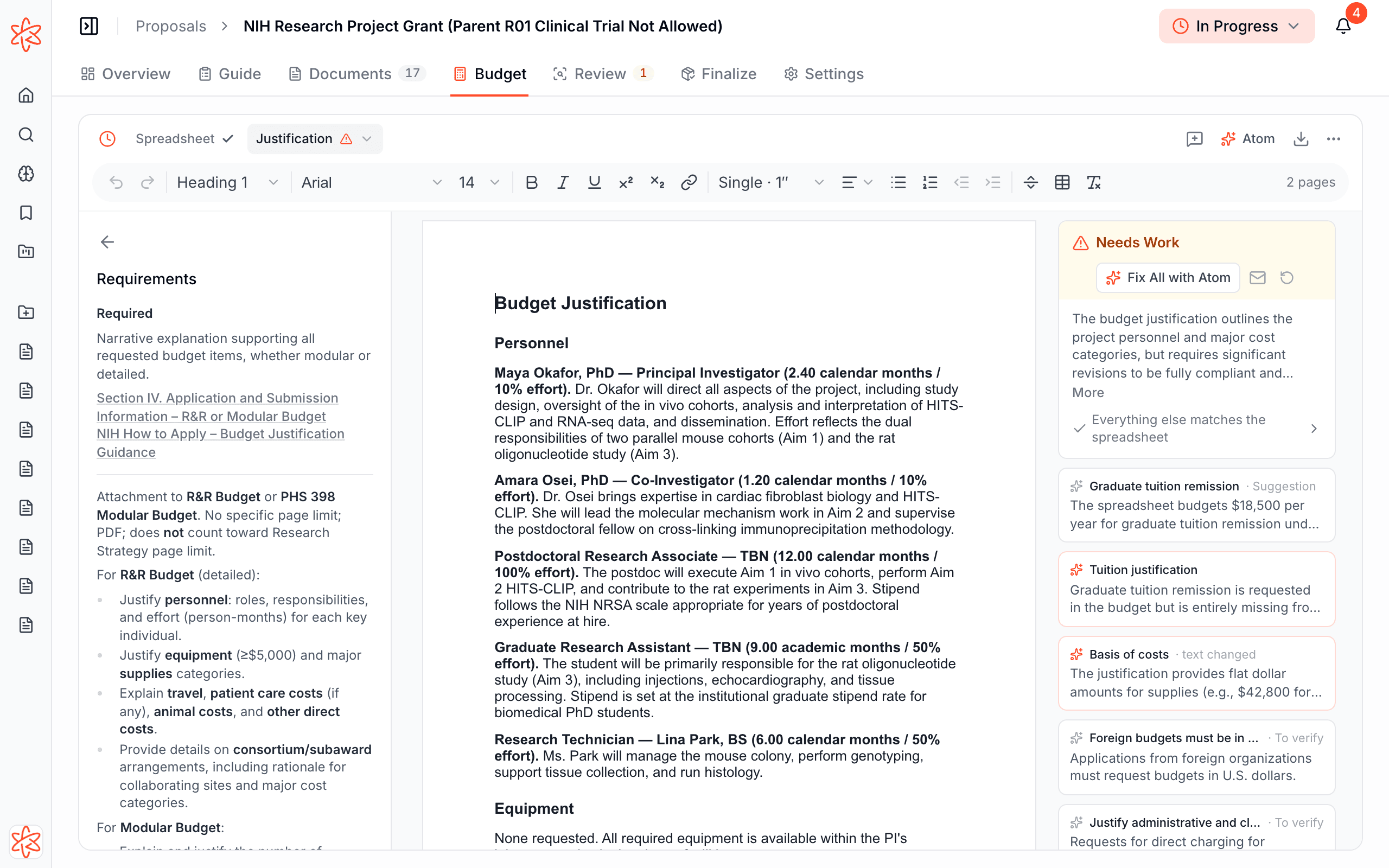
Select Review and Atom checks the justification against your spreadsheet's figures and the funder's rules, including your institution's policies. Mismatches are listed beside the draft, along with what already matches. Use Fix with Atom or Fix All with Atom, and accept or reject the suggested edits.
If you change the budget after a check, the results are marked From before your latest changes, and you can run the check again.
Your budget documents also appear on the Review tab, and you can run their checks from there too.
Ask Atom about the budget
Select Atom at the top right to open Chat for the budget. Ask things like "Does this budget meet the funder's rules?" or "What costs might reviewers question?" You can also select cells or a passage and ask about just that part.
Next, review the rest of your drafts.