Proposals
The Library
The Library is where your research office sets things up once so they reach every proposal they apply to. It used to be called Organization Rules. Owners and admins manage it under Proposals > Library. Researchers don't open it. They see the results on their proposals.
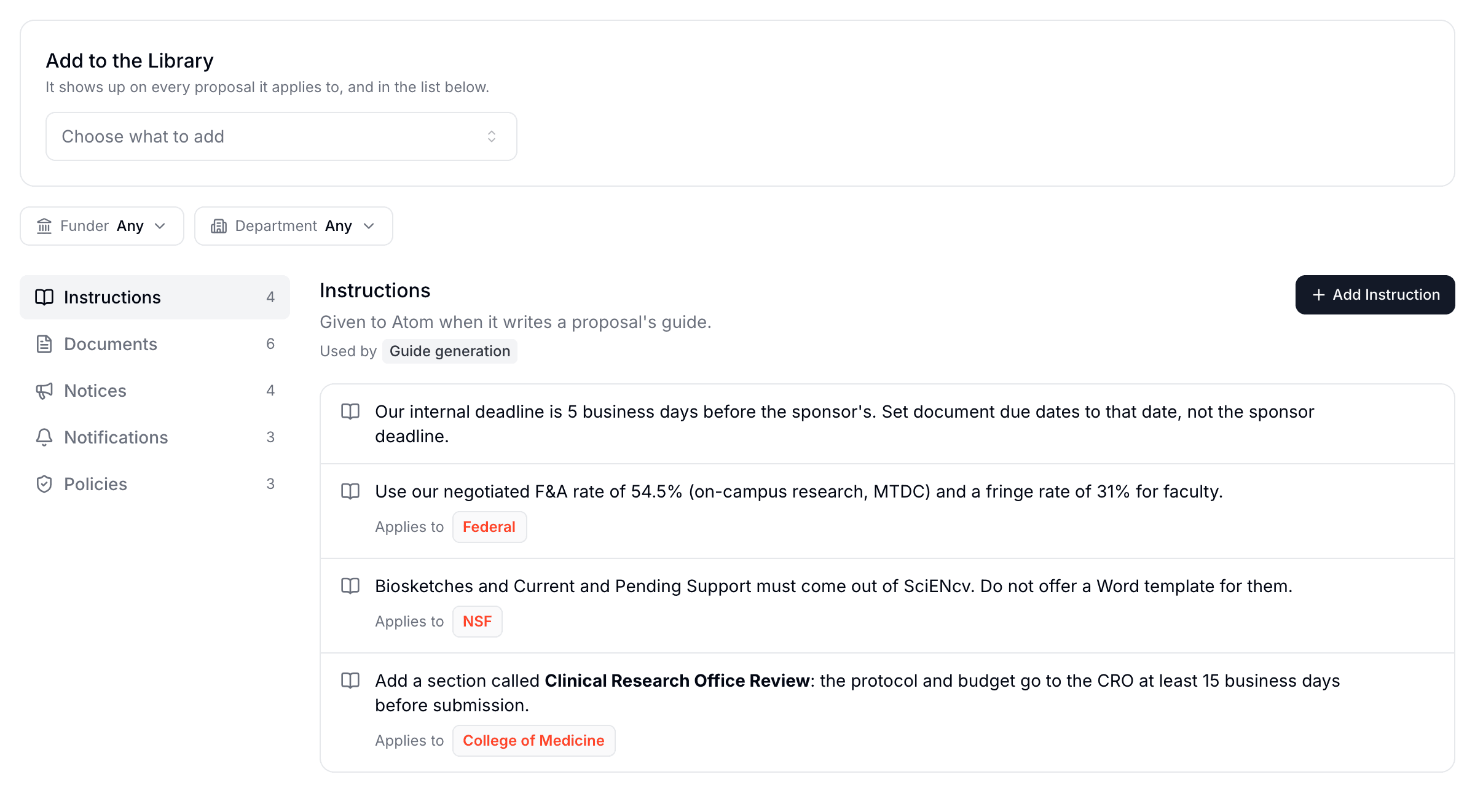
The five kinds
Each kind has one job, and each shows up in one place. Most confusion comes from expecting one kind to do another's job, so start with what you want to happen.
| You want to... | Add a | Who sees it | Where it shows up |
|---|---|---|---|
| Change what Atom writes in the guide, such as your internal deadline | Instruction | The team, as part of the guide | The Guide tab, when the guide is generated |
| Make sure every proposal includes a form your office requires | Required Document | The team | The Documents tab and the Checklist |
| Offer your own template or boilerplate for a kind of document | Supporting File | The team | Use Template when someone starts that document |
| Tell every PI something, word for word | Notice | The team | A banner at the top of the Overview tab |
| Hear when a document is uploaded, without joining the team | Notification | The person you choose | Their email and in-app notifications |
| Have Atom check drafts against your institution's rules | Policy | The team, as review findings | Review, labelled Institution policy |
Adding a policy doesn't put anything on the proposal
A policy never appears as a page, banner, or guide section. Atom only reads it during reviews, so researchers see it when a draft breaks it. If you want people to read something up front, make it a notice.
Add something to the Library
Choose what to add
In Add to the Library, open Choose what to add and pick a type. The Library moves to that kind's page so you can see the new item land in the list. Each kind's page also has its own Add button.
Choose who it's for
Under Who is it for?, select Add Funder or Add Department, or leave it empty so it applies to every proposal. See Choose where it applies.
Fill it in and save
Write the text or attach the file. Most kinds reach matching proposals already underway as well as new ones. See When changes reach a proposal.
To change or delete something, click its row.
Choose where it applies
Everything in the Library shares the same scope. A row with no Applies to chips reaches every proposal in your organization.
- Funders. Pick a funder type, such as Federal or Foundation, or search for a specific funder, such as NSF. An item matches if the proposal's funder is any of the ones you picked.
- Departments. Pick a department, or a college to cover every department under it. Departments are matched to the proposal's lead PI, not to whoever created it. Without a lead PI Atom uses another PI, and without any PI it uses the creator.
- Both. If you pick funders and departments, a proposal has to match both.
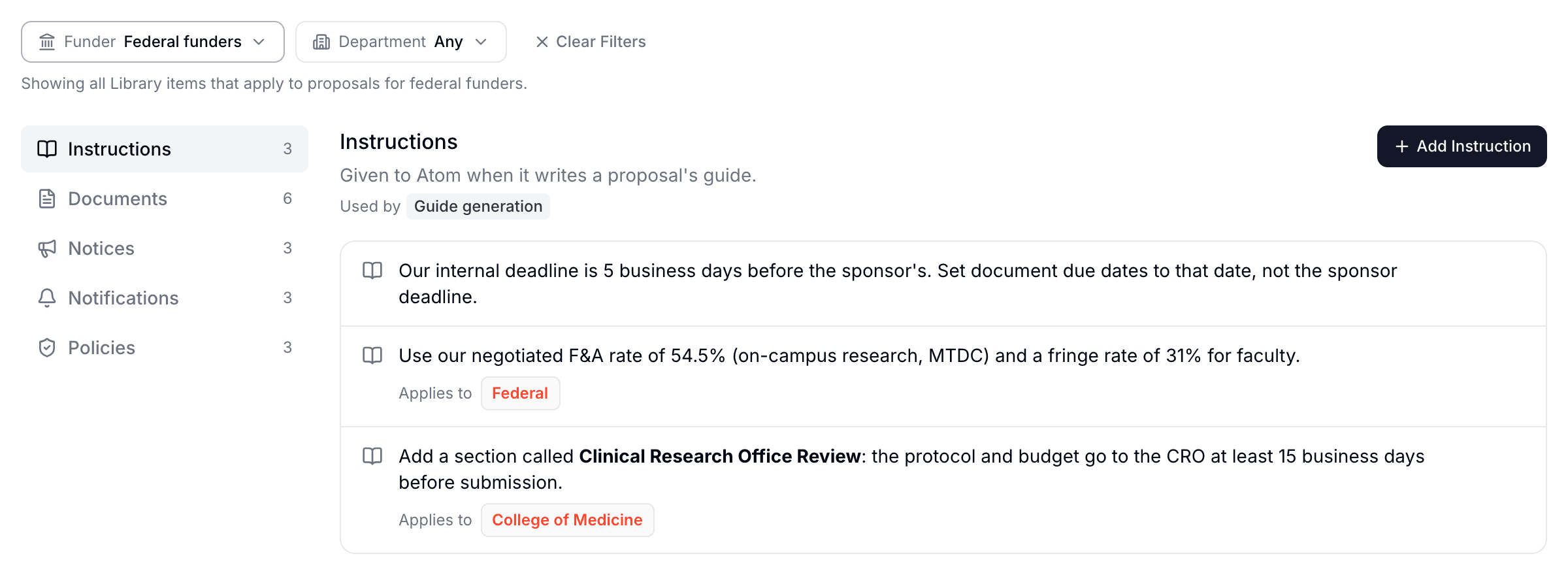
Items add up rather than replace each other, so an NIH proposal in Neurology gets everything for all proposals, for federal funders, for NIH, and for Neurology. When two instructions conflict, the one scoped to a funder or department wins over the one for all proposals.
Check what a proposal would get
Use the Funder and Department filters at the top of the Library to see everything a proposal like that would receive, across all five kinds. The counts on the left update as you filter. Items for all proposals stay in the list, because those proposals get them too.
Only apply it when something is true
Required documents, supporting files, and notices can also carry a condition, written in plain language, such as "the sponsor requires cost sharing or matching funds" or "the solicitation is a limited submission". Atom reads the proposal's solicitation to decide. If it has nothing to read, or can't tell, it leaves the item out rather than guess.
Instructions don't have a condition field, so put the condition in the sentence: "If this is a clinical trial, add a section on..."
Instructions
Instructions are standing directions Atom follows when it generates a proposal's guide. Use them for what your office would otherwise correct by hand every time: your internal deadline, your negotiated F&A and fringe rates, or an agency's format rules. They can also ask for a section of your own in the guide.
Write each one the way you would brief a new grants administrator, in a sentence or two. Type / for headings and lists, or @ to mention someone.
Documents
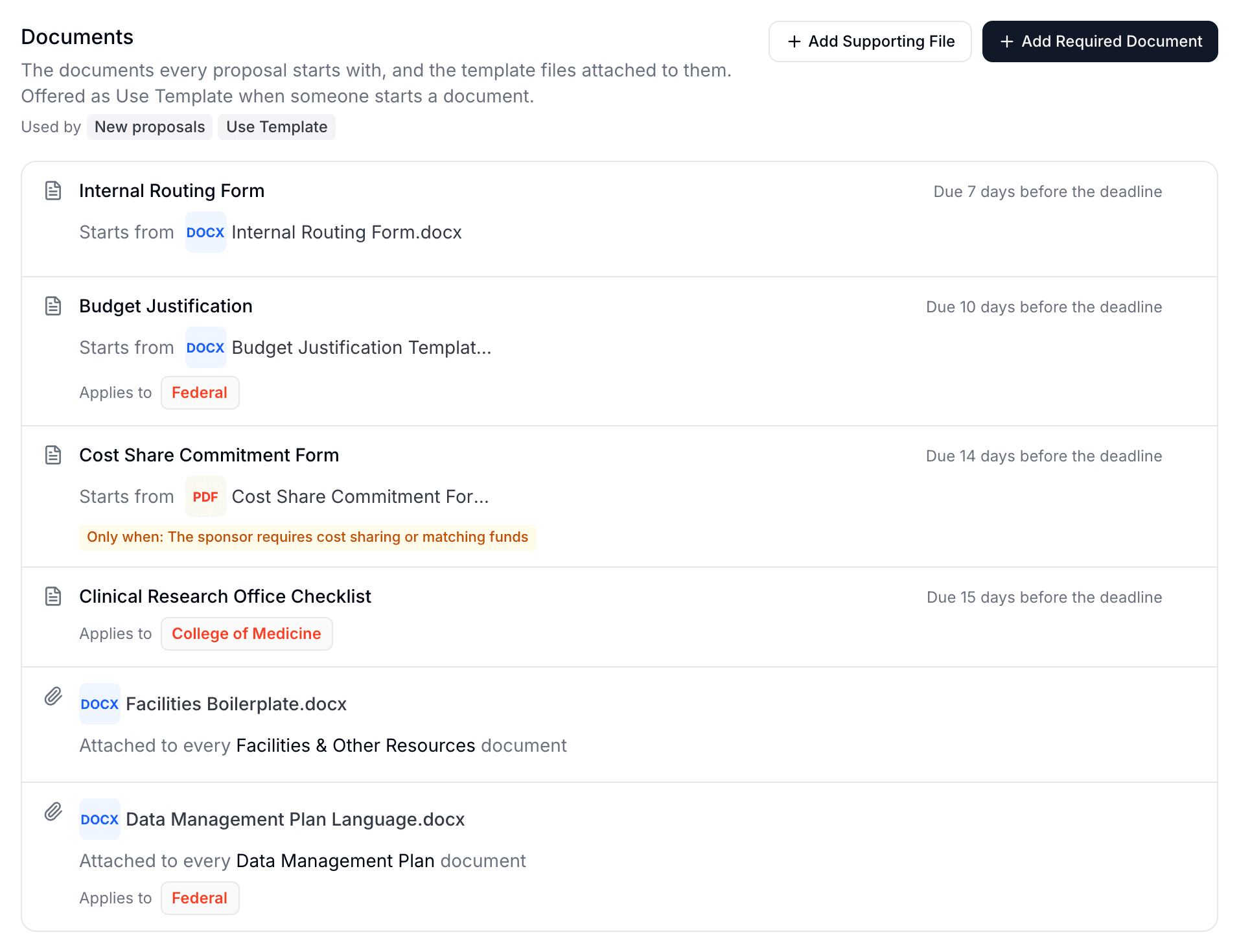
This page holds two different things, and the difference matters:
- Required Document adds a document to the proposal. Give it a name, and optionally a template, a description, and an internal deadline in days before the sponsor's deadline. It appears on the proposal's Checklist and in Documents, even if the funder never asks for it, which makes it the right choice for an internal routing form. If it has the same name as a document the funder asks for, yours takes that document's place on the list.
- Supporting File adds no document. It attaches your file to a type of document that's already on the proposal. For example, attach your facilities boilerplate to Facilities & Other Resources, and it's there whenever a proposal has that document.
What researchers see
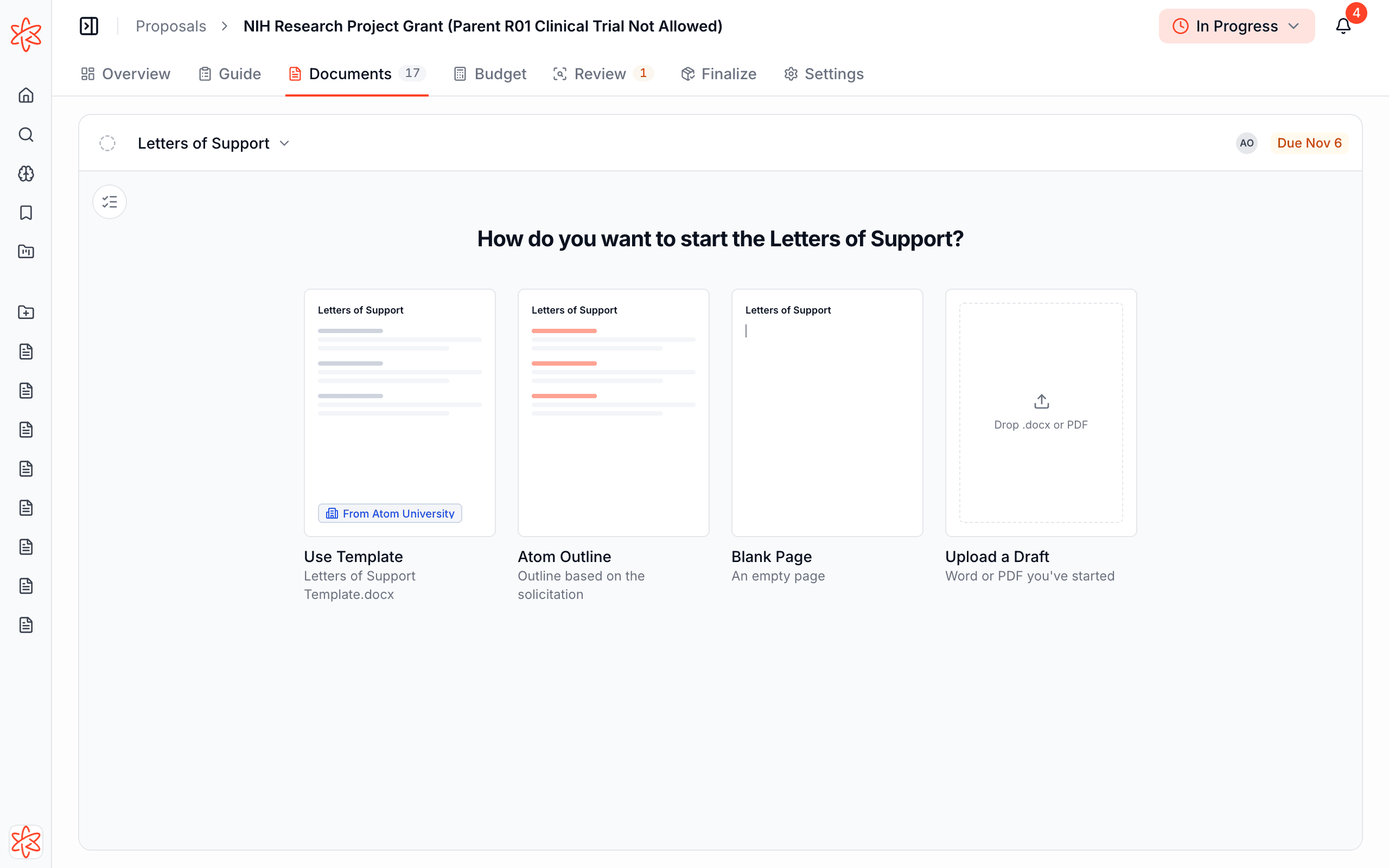
When someone starts a document with a template that Atom can open, such as a Word file or PDF, Use Template appears first in the start gallery, marked as coming from your institution. The template becomes their first draft, so your original stays clean. A budget spreadsheet template is offered as a download instead.
Notices
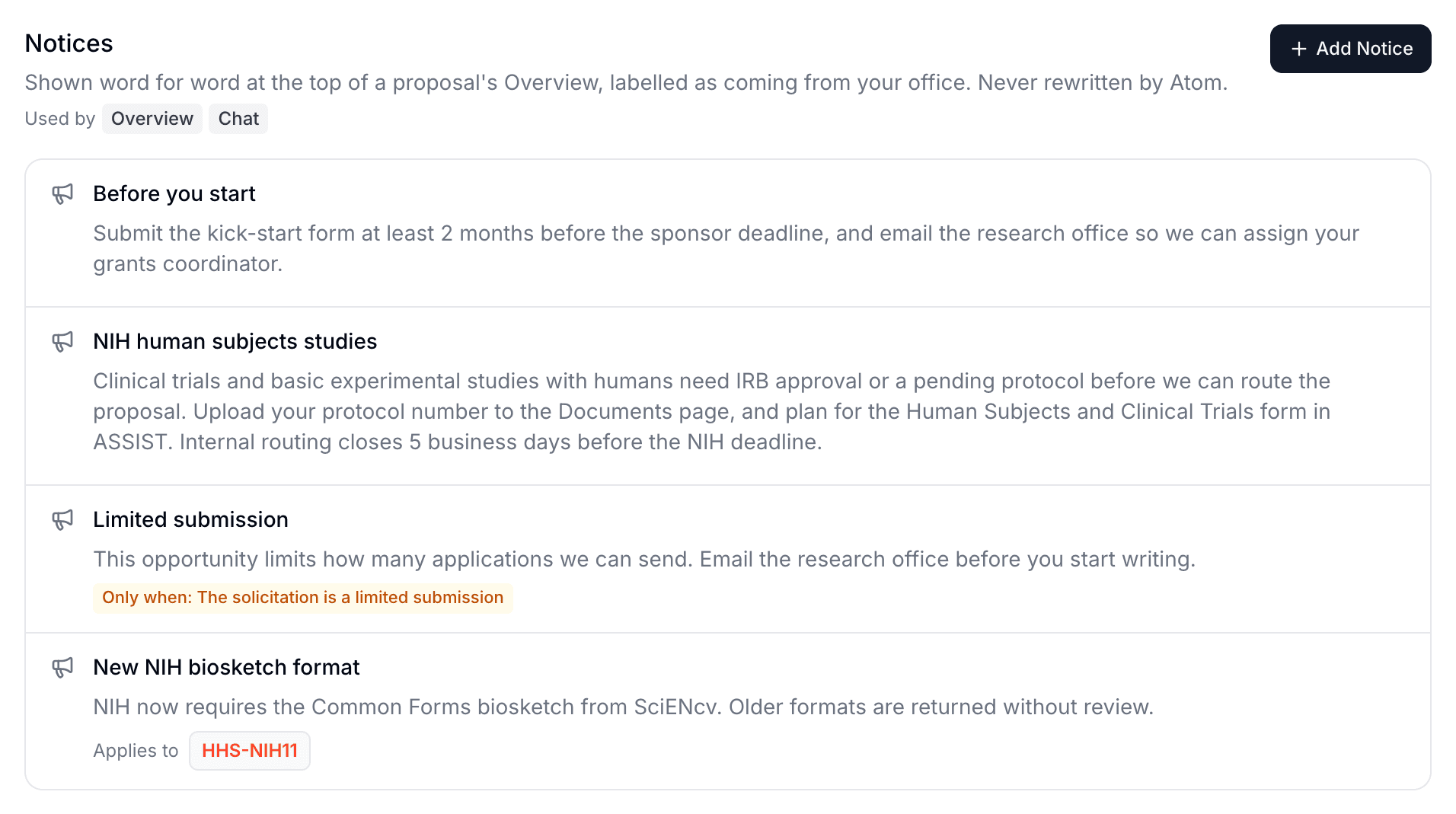
A notice appears at the top of a proposal's Overview, labelled as coming from your research office. Use it for steps and contacts every PI needs, such as a limited submission process or a change in a funder's rules. While you write one, How it reads on a proposal shows a preview.
Atom can also use your notices to answer questions in Chat. If a notice links to an email address, it also adds an Email the Office item to the proposal's Needs attention list. Anyone can dismiss a notice for themselves on that proposal, and it returns if you edit it.
Notifications
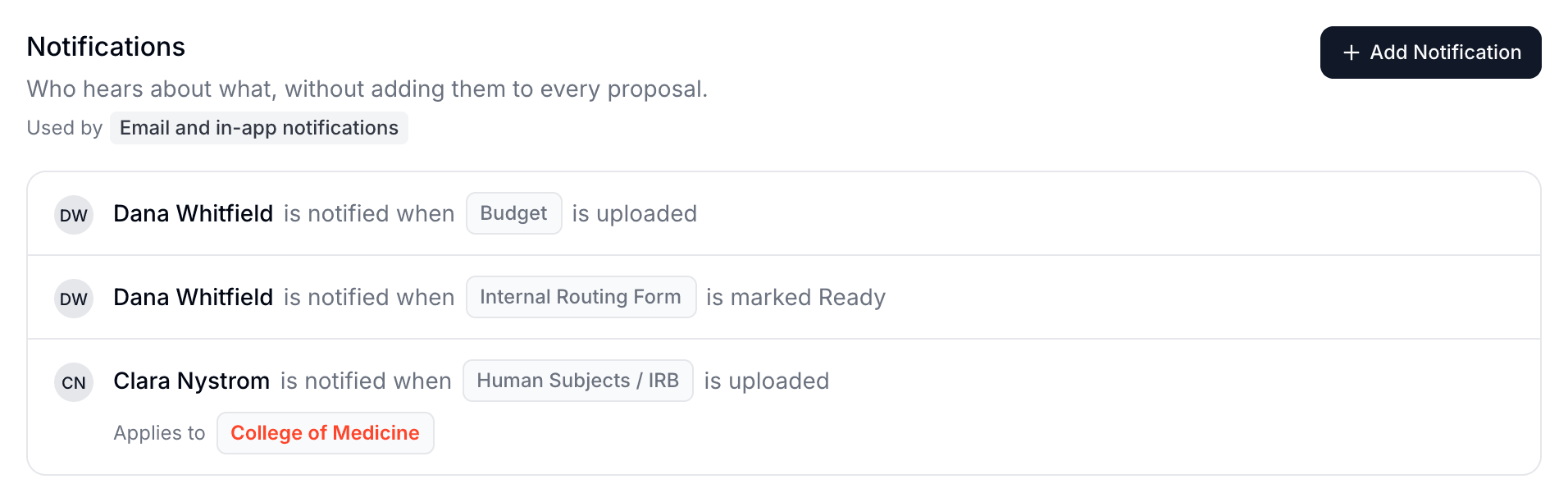
A notification tells someone in your office about documents on every matching proposal, without adding them to the team.
- Notify. Only owners and admins can be chosen, because they can already open every proposal. A notification changes who hears about a document, not who can see it.
- When a document. Pick one or more document types, or leave it empty for every document.
- Event. Either is uploaded or is marked Ready.
If the person is already covered by a broader notification, Atom tells you so that you don't add a duplicate.
Policies
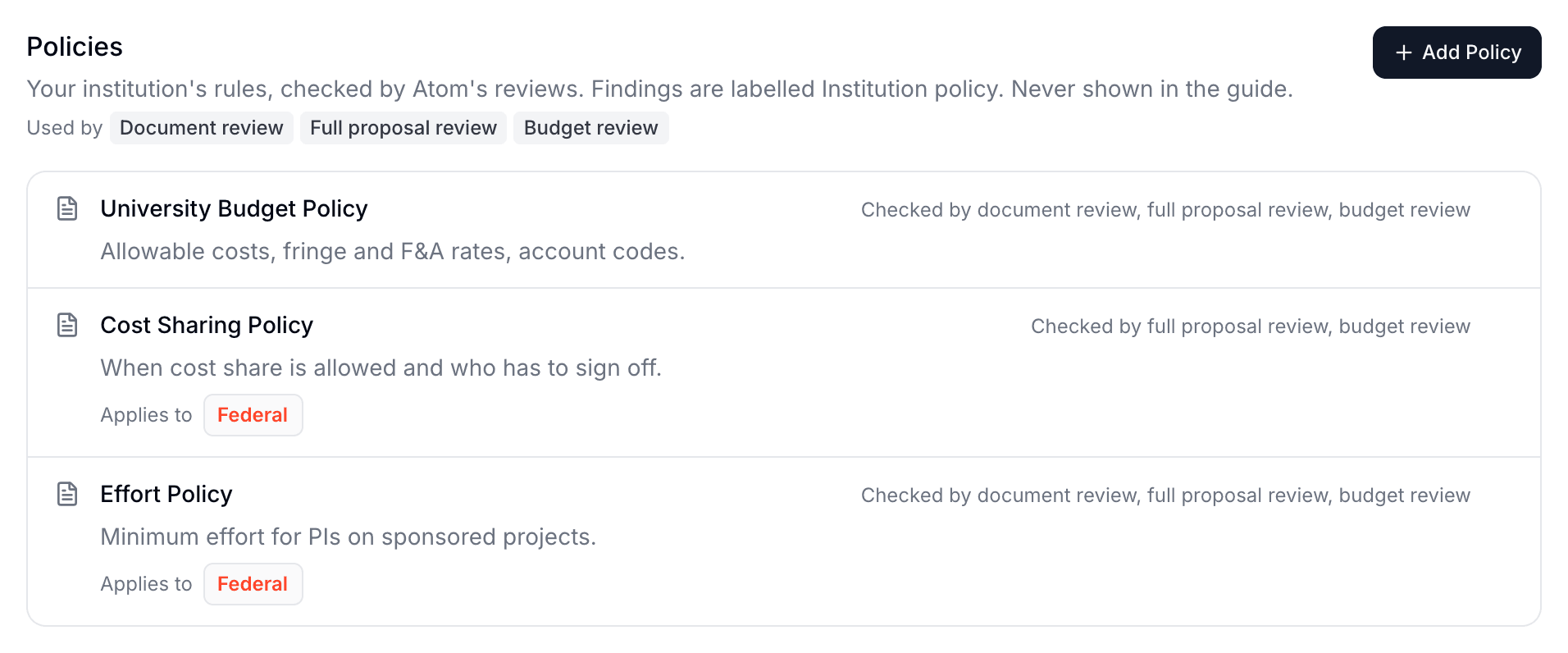
Upload the policy as a PDF, Word, or text file, such as your budget policy, cost sharing rules, or F&A rate agreement. Atom reads it once after upload. The row shows Atom is reading it until it's done, and asks you to upload the file again if Atom couldn't read it.
Under Checked by, choose which reviews use it: Document review, Full proposal review, Budget review, or any combination. What Atom finds is labelled Institution policy in Review, so researchers can tell your rules from the funder's. Atom also uses the rates in your budget policy when it builds a starter budget.
When changes reach a proposal
A change doesn't always reach proposals already underway. This table is the quickest way to work out why something is or isn't showing up.
| Kind | New proposals | Proposals already underway |
|---|---|---|
| Instructions | Yes | Only if the guide hasn't been generated yet. A guide that already exists doesn't change. |
| Required documents | Yes | Added to the list of every matching proposal. Removing one takes it off lists where nobody has started it. |
| Supporting files | Yes | Added to matching documents. Removing one stops offering it, but drafts started from it stay. |
| Notices | Yes | Added, edited, and removed on every matching proposal. |
| Notifications | Yes | Apply from the next upload or status change. |
| Policies | Yes | Apply from the next review. Earlier reviews are marked Policies changed since its review and offer Re-run Review. |
Someone starting a proposal can turn off Auto-add group documents if they're allowed to. That proposal then doesn't receive your required documents or supporting files, now or later.
Common questions
I don't see the Library. It's only for owners and admins. Ask an owner to change your role if you need it.
My form isn't showing up on a proposal. Filter the Library by that proposal's funder and its lead PI's department to check that the form applies. Then check its Only when condition, because Atom leaves the form out if the solicitation doesn't confirm it.
I added an instruction but the guide didn't change. Instructions only apply when a guide is generated, so existing guides stay as they are. You can edit those by hand on the Guide tab.
Should I use an instruction or a policy? Use an instruction to shape what Atom writes, and a policy to check what your researchers wrote. For a rule like your F&A rate, use both.