Proposals
Review
The Review tab shows how ready each draft is. Atom checks each one against the solicitation and your institution's policies, and tells you what to fix.
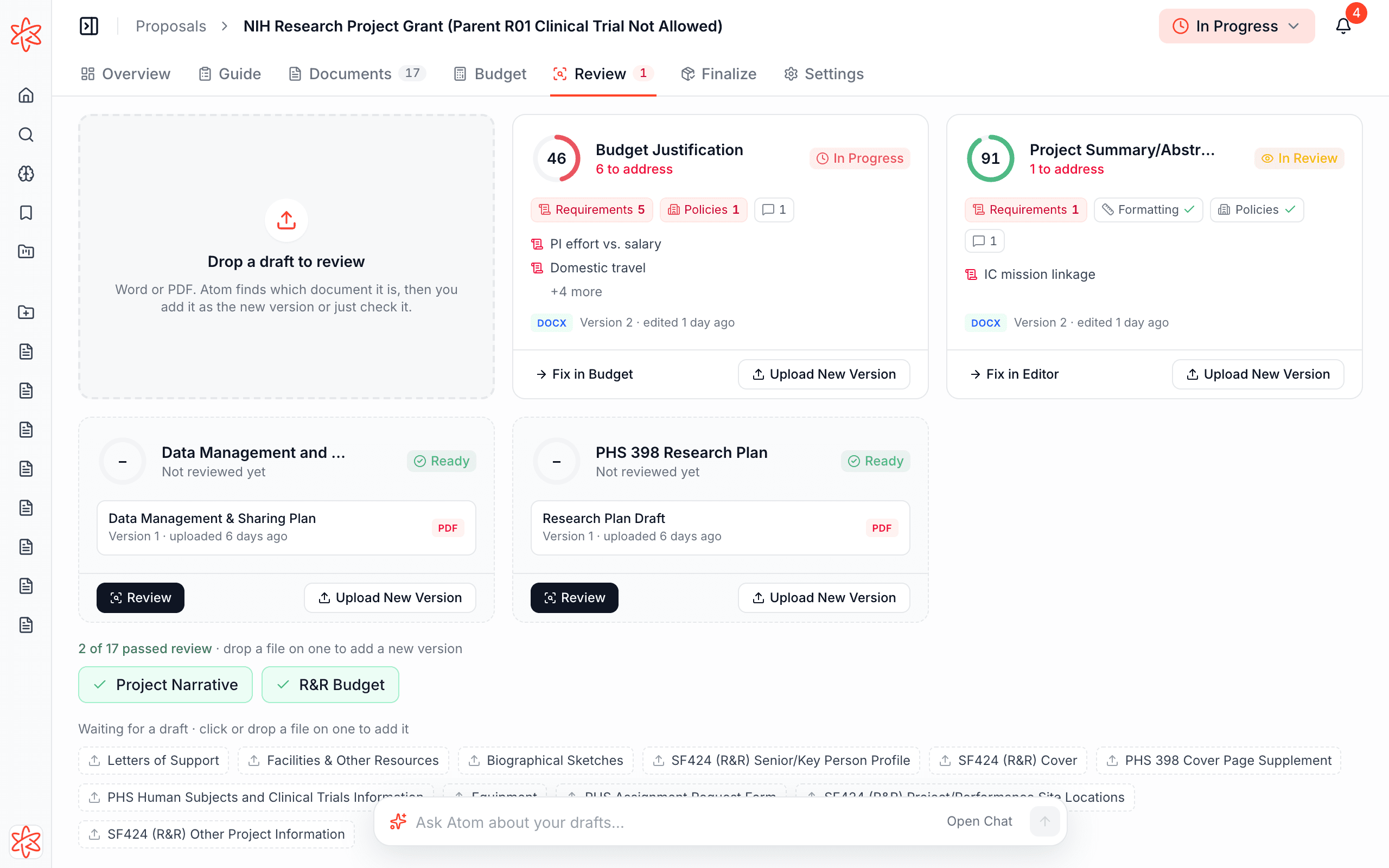
Read a draft's card
Each draft has a card with one score for how ready it is, and its feedback by category:
- Requirements: does the draft cover what the solicitation asks for?
- Formatting: page limits, fonts, and margins, against the funder's rules.
- Policies: your institution's own rules, from the Library.
The card also counts comments from your team and lists the first things to fix. Below the cards, documents that pass appear in green, and Waiting for a draft lists documents with nothing uploaded yet, including ones the solicitation asks for that nobody has started. Click one or drop a file on it to add a draft.
A card marked Edited since its review or Policies changed since its review still shows its last results, faded, with Re-run Review so you can bring them up to date.
Run a review
- On one draft: select Review on its card. It takes about a minute.
- On all of them: select Review All at the top right to review every unreviewed draft. Drafts already marked Ready aren't included, but you can still review them from their cards.
- From the editor: select Review in the bar at the bottom of the document.
Reviews are shared with the whole team, so no one needs to rerun the same check. A clean review moves a document that's To Do or In Progress to Needs Review. Only your team marks a document Ready.
Check anything against the grant
Drop a Word or PDF file on Drop a draft to review, even a draft you're not sure about. Atom works out which document it is and checks it, and you choose what happens next:
- Add as New Version & Review adds it to that document and reviews it. If Atom guessed wrong, pick another document first.
- Just Check It checks it against the solicitation without adding it to the proposal.
You can also drop a file directly on a draft's card to add it as a new version.
Fix what Atom finds
Select Fix in Editor on a card to open the draft with its findings beside it. Each finding explains the problem and suggests a fix. Select Fix with Atom to see suggested changes, or Resolve if your team has handled it.
Budget documents are checked differently, because Atom compares the spreadsheet and justification against each other. Their cards open on the Budget tab with Fix in Budget.
Run a full proposal review
Once a substantial draft is in, ask Atom for a full review in Chat. It reviews anything not yet reviewed, then checks that the documents agree with each other, for instance that your budget narrative matches your budget spreadsheet. You get an overall score against the grant's review criteria, section-by-section strengths and weaknesses with suggested fixes, consistency checks, and formatting flags. The score uses the funder's own scale, so an NIH review shows a rating like 1 to 9 and an NSF review shows a label like Excellent or Very Good.
Treat Atom's reviews as a pre-review. Tighten drafts before they reach your internal read-through, so your reviewers see a stronger proposal.
When the documents are ready, go to Finalize.