Proposals
Finalize
The Finalize tab is the handoff to the sponsor. Atom doesn't submit for you. It gathers the latest version of each document so you can download them and upload them to the sponsor's portal.
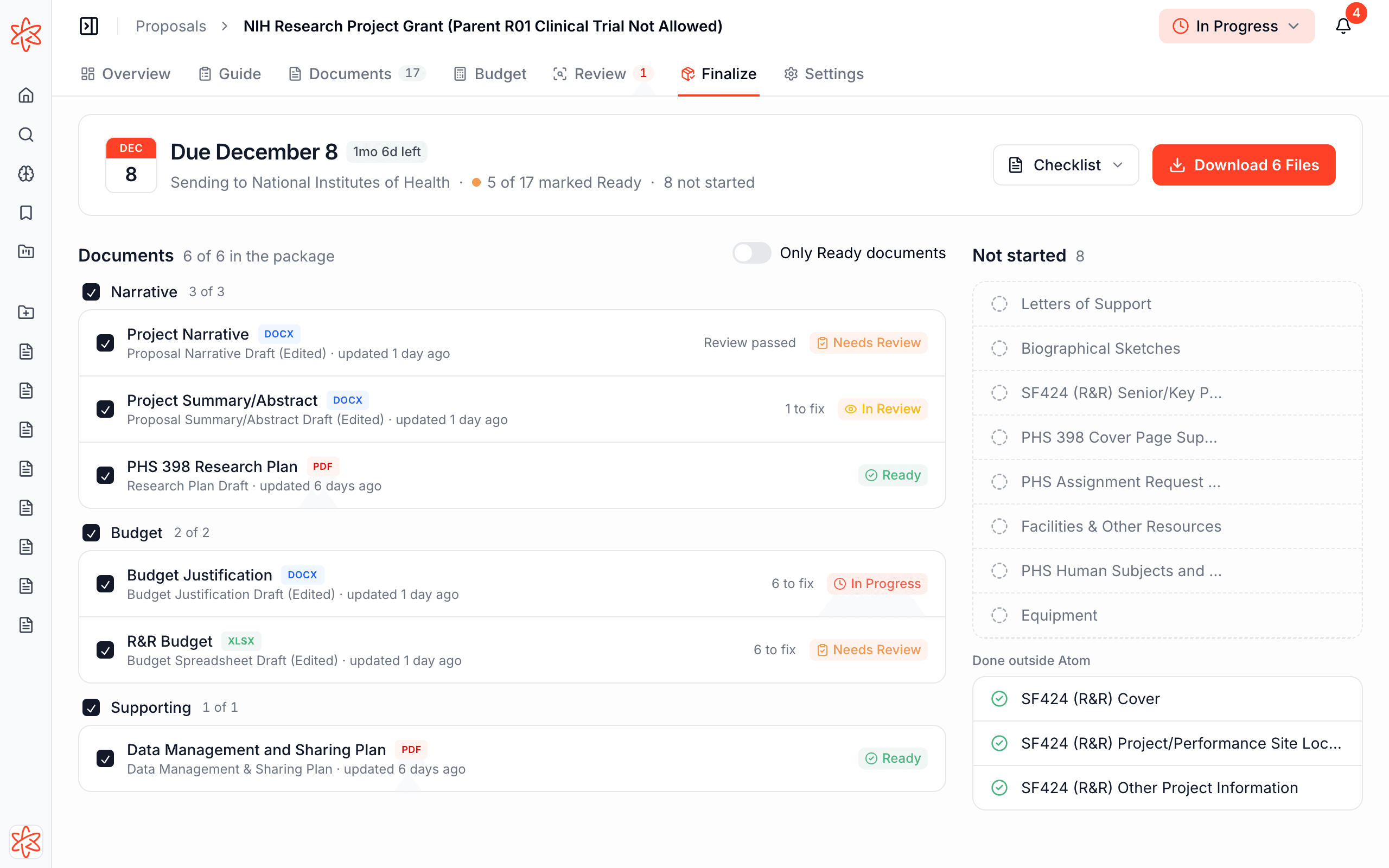
The top of the page shows the sponsor's deadline, who you're sending to, and how many documents are marked Ready.
Choose what's in the package
Documents lists every document with a draft, grouped by type, each with its latest review note and status. Everything with a draft starts out included.
- Untick a document, or a whole group, to leave it out. This is handy for forms that go somewhere else.
- Turn on Only Ready documents to include only documents marked Ready.
Not started lists the documents with no draft. Click one or drop a file on it to add a draft. Done outside Atom lists documents marked Ready with no file, such as a form filed directly in the sponsor's portal. These aren't part of the package. Documents marked Not Needed don't appear here at all.
Download the package
Select Download Files to get the selected documents as one ZIP file. If only one file is selected, it downloads on its own.
Checklist gives you the document list on its own, as a Printable Checklist PDF or a Tracking Spreadsheet with status and assignees to share.
Mark it submitted
After you download the package, Atom asks you to mark the proposal submitted once it's in with the sponsor. Select Mark as Submitted to move the proposal to the right column on its proposals board. The whole team sees that it's been submitted. A proposal admin or PI can do this.
Atom remembers the download in your browser, so if a teammate downloaded the package, or you've switched computers, you may need to download it again to see Mark as Submitted.